How to Tell if a Website Is Outdated: A 10-Minute Checklist
 By Ryan Shaw. Published . 8 min read.
Key takeaways
- You can tell if a website is outdated in about 10 minutes with a browser, a phone and two free Google tools.
- Write down evidence for every problem: what you saw, where and when. A note you cannot show is a guess.
- Taste is not a problem. A plain site that loads, fits a phone and shows a phone number is fine.
- Two or more real problems on a busy business is the lead worth a first email.
On this page
- Before you start: set up in one minute
- Step 1: The padlock (1 minute)
- Step 2: The phone view (2 minutes)
- Step 3: The speed (2 minutes)
- Step 4: Dates, links and basics (3 minutes)
- Step 5: Write your notes (2 minutes)
- What does not count as outdated
- How to say each finding kindly
- A worked example of one notes row
- When to stop checking by hand
- The checklist, in one place
- Questions people ask
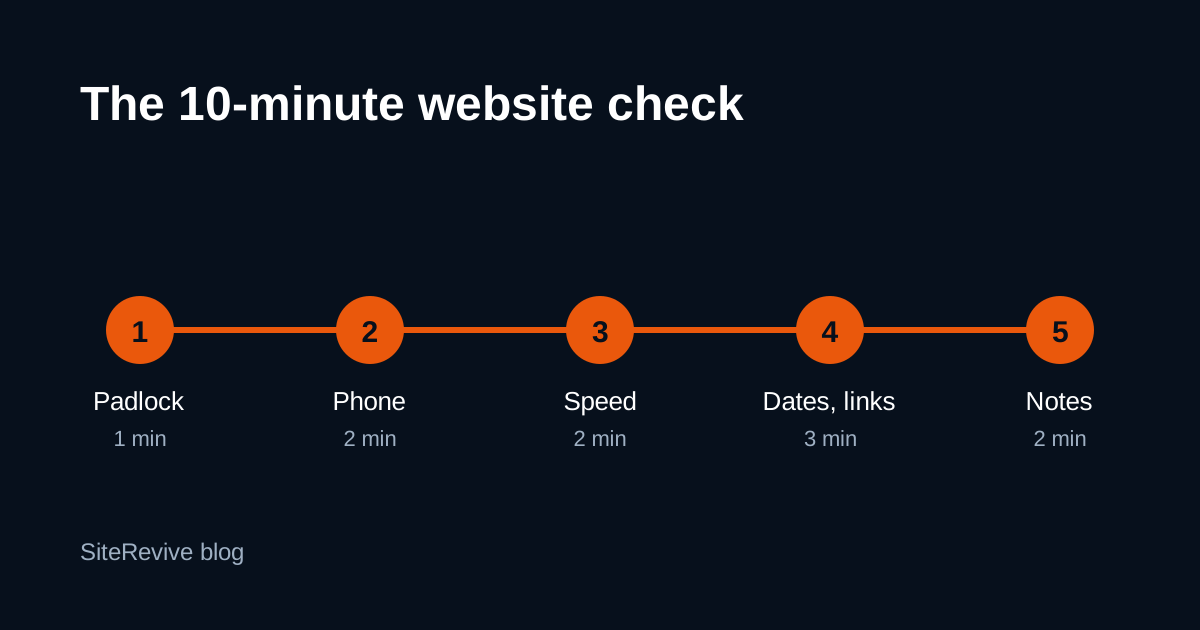
To tell if a website is outdated, check five things in order: the padlock, the phone view, the speed, the dates and links, and then write your notes. With a browser, a phone and two free Google tools, the whole check takes about 10 minutes per site. Two or more real problems on a business that is clearly busy is a lead worth a first email. One problem alone is usually not.
This is the slow, careful version. If you only need to sort a long list fast, use the two-minute check for leads with bad websites first. Then run this 10-minute check on the few you plan to contact. If the owner already hired you and you are reviewing their site, the website audit checklist for small business sites fits better. This page is for the step in between: you found the business, and you want proof before you write to them.
Before you start: set up in one minute
Open three things side by side:
- The business's Google listing, so you know the name, phone number and hours they show the public.
- The website, on a computer.
- The same website, on your phone.
Open a notes file or a spreadsheet with these columns: business, website address, date checked, problem, where you saw it, what you would say. Fill one row per problem, not one row per site. You will thank yourself when you write the email.
Check you have the right business before you spend 10 minutes on it. Same name, same street, same phone. Our guide on how to confirm the right business before you pitch covers the traps, like two shops with one name in different towns.
Step 1: The padlock (1 minute)
Look at the address bar on the computer.
- A padlock or a "secure" icon is a pass.
- "Not secure" next to the address is a fail. Chrome has marked every plain http page as "not secure" since Chrome 68, which Google announced on the Chromium Blog in February 2018.
- A padlock with a warning, or a padlock that disappears when you open another page, often means some parts of the page still load in an unsafe way. Note it as "not fully secure".
Then type the address with https:// at the front yourself. Some sites work on https but the Google listing still points to the old http address. That is a small fix, not a broken site. Write down which one you saw.
Evidence to note: the exact words the browser showed, and the page you were on.
Step 2: The phone view (2 minutes)
Open the site on your actual phone, not a narrow browser window. Google indexes and ranks sites using the mobile version of their content, as its mobile-first indexing guide explains. Owners rarely look at their own site this way.
Check these, in this order:
| Check | Pass | Fail |
|---|---|---|
| Text size | You can read it without zooming | You pinch to read anything |
| Width | Nothing runs off the side | You scroll sideways |
| Phone number | Tapping it starts a call | It is plain text, or missing |
| Menu | Opens and closes with your thumb | Tiny links, or it covers the page |
| Main photo | Loads and fits | Stretched, cut off or missing |
Take one screenshot of the worst thing you see. You may never send it, but it keeps you honest later.
Step 3: The speed (2 minutes)
Paste the address into Google PageSpeed Insights and wait for the mobile result. It is free and needs no account.
Do not copy the big number into your email. Owners do not know what it means, and a number out of context sounds like a sales trick. Note two plain things instead:
- How long the page took to show its main content on the phone test.
- Whether the page felt slow when you opened it yourself in step 2.
If both agree, you have a real finding. If PageSpeed is unhappy but the page felt fine on your phone, skip it. A test result alone is weak evidence for a business owner.
Step 4: Dates, links and basics (3 minutes)
This is where most outdated sites give themselves away.
Dates
Scroll to the footer. Note the copyright year. Then look for other dates: a "latest news" box, a special offer, an events page, holiday hours.
A footer year from several years ago is a hint, not proof. Plenty of well-run sites forget to change it. A news section whose newest post is years old is stronger evidence, because someone once updated it and stopped.
Links
Click every link in the main menu, and the contact page. Count the ones that lead to an error page or a blank page. Try the contact form if there is one, but do not send it. Check the phone number on the site matches the Google listing.
Search basics
Open Google's free Rich Results Test and paste the address. If it finds no business details at all, the page is missing information search sites use to list it. You can also right-click the page, choose "View page source" and look for a page title that is just "Home" or empty. Both are fair notes. Neither is a crisis.
Old technology
A few signs are easy to spot without any tools: a page that asks for Flash, a layout built as a fixed-width box in the middle of a wide screen, or a "best viewed in" message. Note what you saw, not a guess about how it was built.
Step 5: Write your notes (2 minutes)
Now add up the points. One point per real problem, with evidence.
| Points | What it means | What to do |
|---|---|---|
| 0 to 1 | The site works. | Skip it, or save it for later. |
| 2 to 3 | Real problems a customer would notice. | Check the business is busy, then write. |
| 4 or more | The site is holding the business back. | Put it at the top of your list. |
This points table is my own rule of thumb for hand checks, not an industry standard. Change it to suit your market.
Then check the business, not just the site. Recent Google reviews, current hours and new photos tell you the shop is open and customers still come. A busy business with a weak site is the best case. A closed one with a weak site is no lead at all. Our original data from New Jersey business websites shows how often those two go together: many of the businesses with dated sites had strong review ratings.
What does not count as outdated
This part saves you from embarrassing emails.
- A plain design. Simple is not old. If it loads, fits a phone and shows a phone number, leave it alone.
- A site builder. Wix, Squarespace and similar tools can make good sites. Judge the result, not the tool.
- Colors or fonts you dislike. Your taste is not the customer's problem.
- One missing feature, like online booking, when the business clearly takes calls instead.
- A Facebook page with no website. That is a different kind of lead, with a different first message. Note it separately. If you want those leads, start with how to find businesses with no website on Google Maps.
How to say each finding kindly
Owners hear "your website is bad" as "you are bad at business". Say what you saw, where, and stop. Here are plain lines for each finding. Use one, two at most, in a first email.
| Finding | What to say |
|---|---|
| Not secure | "When I opened your site, my browser showed a Not secure warning next to the address." |
| Phone layout | "On my phone the text was very small and I had to zoom to read your services." |
| Slow | "Your homepage took a while to load on my phone." |
| Old footer year | "The footer still says 2019. Easy to miss, but customers notice." |
| Broken link | "The Services link in your menu opened an error page when I tried it today." |
| No tap-to-call | "I could not tap your number to call from my phone." |
| Missing search basics | "Your homepage title just says Home, so search results show very little about you." |
What not to say: that the site is "costing you customers" or "losing you money". You cannot know that, and the owner knows you cannot know that.
For the full first email, including how to attach a finished sample instead of a pitch, read the cold email that offers a finished website.
A worked example of one notes row
Here is what one good row looks like. The details are made up to show the format.
Business: (name)            Checked: 2026-10-21
Site: http://example-roofing.com
Problem: Not secure
Where: Homepage, Chrome on desktop, "Not secure" next to address
Evidence: screenshot saved as roofing-01.png
What I would say: "My browser showed a Not secure warning on your homepage."
Five rows like this per business, and the email nearly writes itself. You also have proof if the owner asks "where did you see that?"
When to stop checking by hand
Ten minutes is fine for five businesses. It is a long afternoon for fifty. That is the trade-off: hand checks are free and you learn a lot doing them, but they do not scale.
SiteRevive runs the same kinds of checks for you. It finds local businesses, checks each website, writes down the real problems it found, and takes an email only from the business's own website. It never guesses an email or a problem. You still decide who to contact and what to say. Plans start at $97 a month, with a 7-day money-back guarantee, no questions asked. See the SiteRevive plans if you want the checks done in bulk.
If you are building a whole business around this, the step-by-step guide to starting a website agency with AI shows where this check fits, from finding the first lead to handing over a finished site.
The checklist, in one place
Copy this into your notes app and run it on your next lead.
1. Padlock (1 min): secure, not secure, or not fully secure?
2. Phone (2 min): readable, no sideways scroll, tap to call, menu works?
3. Speed (2 min): PageSpeed mobile result + how it felt on your phone
4. Dates and links (3 min): footer year, newest dated content,
   every menu link, contact page, phone matches Google, search basics
5. Notes (2 min): one row per problem, points total, busy business?
Run it on one site today. You will learn more about outdated websites from one careful check than from ten fast ones.
Two checks in this list have their own posts: how to check if a website is mobile friendly and what an old copyright year does and does not prove.
Questions people ask
How can you tell if a website is outdated?
Check five things: a padlock in the address bar, how the page looks on a phone, how fast it loads in Google PageSpeed Insights, the footer year and dates on the page, and whether menu links work. Two or more real problems is a strong sign.
Is an old copyright year proof that a site is outdated?
No. Some owners forget to update the year on a site that works well. Treat it as a hint and look for a second problem before you say anything.
What free tools check a website?
Your browser shows the padlock. Your phone shows the layout. Google PageSpeed Insights tests speed on a phone. Google's Rich Results Test shows whether the page has the business details search sites read. All four are free.
How long should a website check take?
About 10 minutes for a careful check with notes. A quick two-minute pass is enough to sort a list. Use the longer check only on businesses you plan to contact.
Sources
- Mobile-first Indexing Best Practices, Google Search Central, read October 21, 2026.
- A secure web is here to stay, Chromium Blog (February 8, 2018), read October 21, 2026.
- PageSpeed Insights, Google, read October 21, 2026.
- Rich Results Test, Google, read October 21, 2026.
Ryan Shaw
Ryan Shaw makes SiteRevive. He ran a marketing agency for 15 years and worked with 100+ agency clients. He has generated $100M+ in online sales, most of it through agency clients, and has helped 15,000+ marketers with software, courses and coaching.
Earnings disclaimer. SiteRevive and this article do not promise income, sales or replies. What you earn, if anything, depends on your work, your market and your offer. Results vary and some people earn nothing.