4. Read your first report
Your search is done. Now you read one report. You are looking for one true problem you can point at.
Step 1. Find your finished search
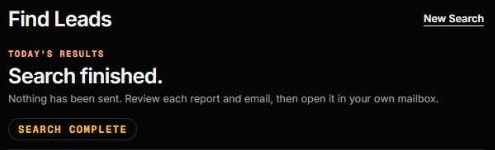
- On the left, click Find Leads. A finished search shows Search finished at the top.
- Read the line under it. It says Nothing has been sent. That is always true. SiteRevive never sends.
- Scroll down a little. You will see a list called Strongest leads, first to send. Each business on it has a number out of 100.
A higher number means a weaker website. “Strongest lead” means the clearest chance to help. It is a way to sort the list. It cannot tell you who will answer. It cannot tell you who will buy. Nothing can.
You asked for one result. So you should see one business. A search can end with fewer, or none. Chapter 3 says what to do then. Later, when you ask for more, start at the top of the list.
Step 2. Read the lead card
Under the list, the first business has a card. The card has tabs: Email, Phone, Summary and Try next. Stay on Email for now. Here is what is on it.
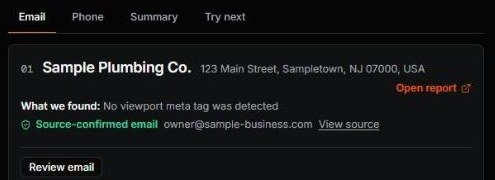
- What we found. One problem with their website, in a short line. On the card it can look technical. For example, “No viewport meta tag was detected” means the site may not fit a phone screen. The report says it in plain words.
- Source-confirmed email. The green line means the email address was found on the owner’s own website.
- View source. Click it. It opens the page where the email was found. Check that the address is really there.
- Open report. Click it. This opens the private report.
- Review email. The next chapter is about this button.
Step 3. Open the report
Click Open report. The report opens on its own page. The link in your email opens this same page for the owner.
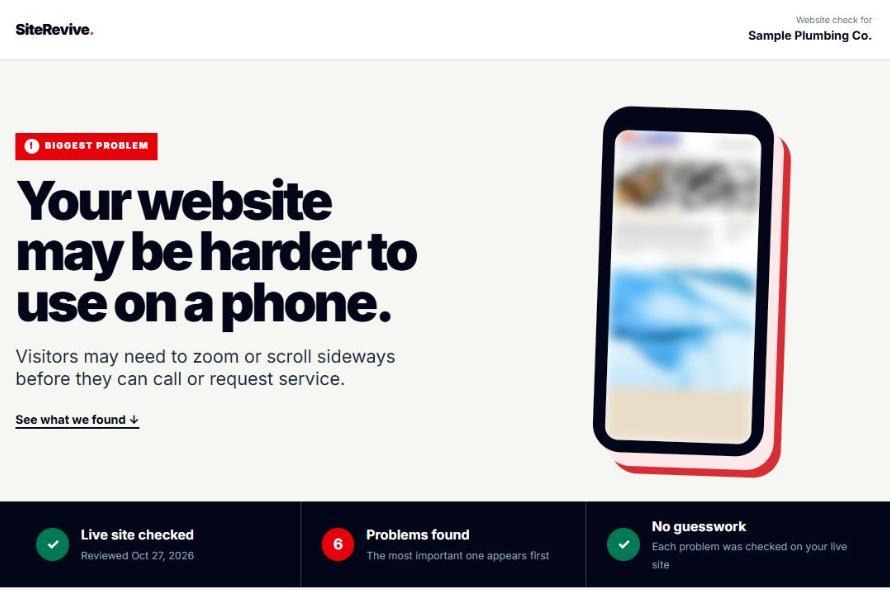
- At the top, check the business name. Is it the right one?
- Find the Biggest problem. It is named first, in words an owner can follow.
- Look at the bar under it. Live site checked says the site was checked live. Problems found says how many. No guesswork says each problem was checked on their real website.
- Scroll down. Each other problem says what is wrong, why it matters and how to fix it.
One biggest problem, named in plain words. Under it, the other problems, each with what is wrong, why it matters and how to fix it.
Step 4. Check it yourself
Do not trust any report you have not checked. This takes two minutes.
- Open the business’s website in a new tab.
- Use your phone if the problem is about phones.
- Can you see the biggest problem with your own eyes?
- Yes? Good. This is the one true thing you will say to the owner.
- No? Skip this business. Do not write about a problem you cannot see. Look at the next business on the list, or run a new search.
No picture of the website in the report? That is fine. The picture is optional. The report is built from checks on the live site.
Trusting the number. A high number sorts the list. It does not promise anything. Check the site yourself.
Skipping View source. If the email is not on the owner’s own site, do not use it. Never guess an address.
Listing five problems. Pick the biggest one. One true thing is enough for a first email.
Keeping a problem you cannot see. If you cannot see it, an owner will not either.
Check yourself
- I found Search finished on Find Leads.
- I opened the report and read the biggest problem.
- I opened the business’s website and saw the problem myself.
- I used View source and saw the email on the owner’s own site.
No Review email button, or no green email line? Skip that business and try another. All four boxes ticked? Go to chapter 5.