3. Run your first search
You will ask SiteRevive for one result. Just one. It is the fastest way to see how everything works, and nothing gets sent.
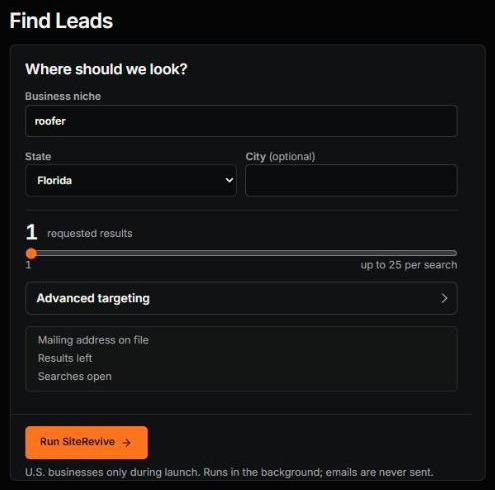
Step 1. Start a search
- On the left, click Find Leads. If you see New Search, click that.
- In Business niche, type your one kind of business. Example: roofer. Keep it short. “Niche” just means kind of business.
- Pick a State. Add a City only if you want a smaller area.
- Drag the slider to 1.
- Click Run SiteRevive. Click it once.
Leave Advanced targeting alone for now. Under it, the box lists your mailing address, the results you have left, and open searches. Check that it shows your address is on file.
The page switches to your search. It runs in the background. You can close the window and come back later. Closing the page does not stop it.
Why only 1? A search can ask for up to 25. Start with 1. You see the whole path with one business: the report, the email, the check. If something is off, you find out early. Each search uses some of your monthly results, even if it ends early. So ask for the number you want to read.
Nothing is sent. A search only finds, checks and writes. It never sends.
What SiteRevive does while you wait
| Part | What happens |
|---|---|
| 1. Find | It looks for local businesses of your kind, in your place |
| 2. Check | It checks each business's website, and drops businesses that do not fit |
| 3. Report | It makes a private report for each business that passes |
| 4. Email | It writes the first email, ready for you to read |
A business counts as a result only when three things are true:
- its report is ready,
- it has an email address from its own website,
- and the email is written.
Businesses that fail a check are swapped out. They do not count.
How you know it is done
Open Find Leads again. When the search is done, the top of the page says Search finished and Nothing has been sent. Your finished business shows right there on Find Leads. Manage Leads, on the left, keeps every business you have ever found. Chapter 4 shows you what to do from there.
If something goes wrong on day one
Most day-one problems are one of these. Find yours.
The search will not start
Read the red note on Find Leads. It names the problem. It is usually one of these four things:
- the kind of business was not clear,
- your Settings are missing something,
- you have no results left this month,
- the service had a short pause.
Fix that one thing and click Run SiteRevive once. If a search is already running, let it finish first.
It looks stuck
Refresh Find Leads one time. Wait. If nothing moves for more than 20 minutes, email improveddigital@gmail.com. Tell me the kind of business, the state, the city, and about when you started. Do not start a second search while the first is still running.
It ended early, with fewer results than you asked for
Some places do not have enough good businesses. SiteRevive will not lower its checks to fill the number. Keep what it found. Then try a more exact kind of business, or a different city or state.
It says no email could be prepared
Open Settings. Check that your name, business name and mailing address are saved. Then try again, or try another kind of business.
A report has no picture of the website
That is fine. The picture is optional. The report uses the checks it ran on the live site.
It says you are out of results for the month
Find Leads says so, and names the day they come back. It will not start a search it cannot cover.
Asking for 25 on the first try. You will read 25 reports before you have sent one email. Start with 1.
Clicking Run twice. Click it once. Then wait.
Typing a long sentence in the niche box. Type the kind of business. Two or three words.
Giving up after the first “ended early.” It is not a failure. Change the place or the kind of business and run again.
Check yourself
- I ran one search for one result.
- I saw my search start, and I know I can close the window.
- Find Leads says Search finished, or I know what to do if it does not.
Next: your first report, and the one problem it shows.