1. Set up in ten minutes
This takes ten minutes. You tell SiteRevive who you are. Your name and address then show on every email it writes.
What SiteRevive does, and what you do
| SiteRevive does this | You do this |
|---|---|
| Finds local businesses | Pick the kind of business and the place |
| Checks each business's website | Look at what it found |
| Makes a private report for each one | Check that the problem is real |
| Writes the first email | Fix it until it sounds like you |
| Never sends anything | Press Send yourself, from your own inbox |
That last row matters. SiteRevive does not connect to your mailbox. It cannot send for you. Every email goes out under your name, after you read it.
What you need
- Your SiteRevive sign-in.
- Your own email. Gmail, Outlook or any other works.
- A mailing address where you can get mail. Every email shows one.
- A Calendly or Cal.com link. This one is optional. You can add it later.
Step 1. Add your details
This is what owners see at the bottom of your email.
- Sign in. At the bottom left, click your email address. Then click Settings.
- Under Your details, type Your name and Business name. No business yet? Use your own name for both.
- Type your Mailing address.
- If you have one, paste your Calendly link or Cal.com link. Skip this if you do not.
- Click Save.
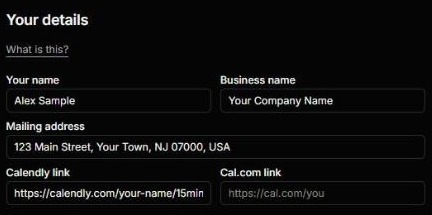
Your details stay in the boxes after you save. From now on they show at the bottom of every email SiteRevive writes for you.
Why the address is required
Every business email needs a real mailing address and a way to say stop. Every email SiteRevive prepares includes both. If your address is empty, it will not prepare your emails at all. That is on purpose. Use an address where you can get mail.
Boxes you can skip for now
- Payment link and GoHighLevel. Leave them blank for now. You do not need them to send your first email. A later chapter explains them.
An empty address. Nothing gets prepared. Fill it in first.
A broken booking link. Open your Calendly link in a new tab before you paste it. If it does not open for you, it will not open for an owner.
A made-up business name. Use the name you will sign emails with. Owners should recognize it when you write again.
Check yourself
- I opened Settings from the bottom left.
- My name, business name and mailing address are saved.
- My booking link opens when I click it, or I left it blank.
All three? Go to chapter 2.